 SameSame
Guide
How to use Temu image search on desktop
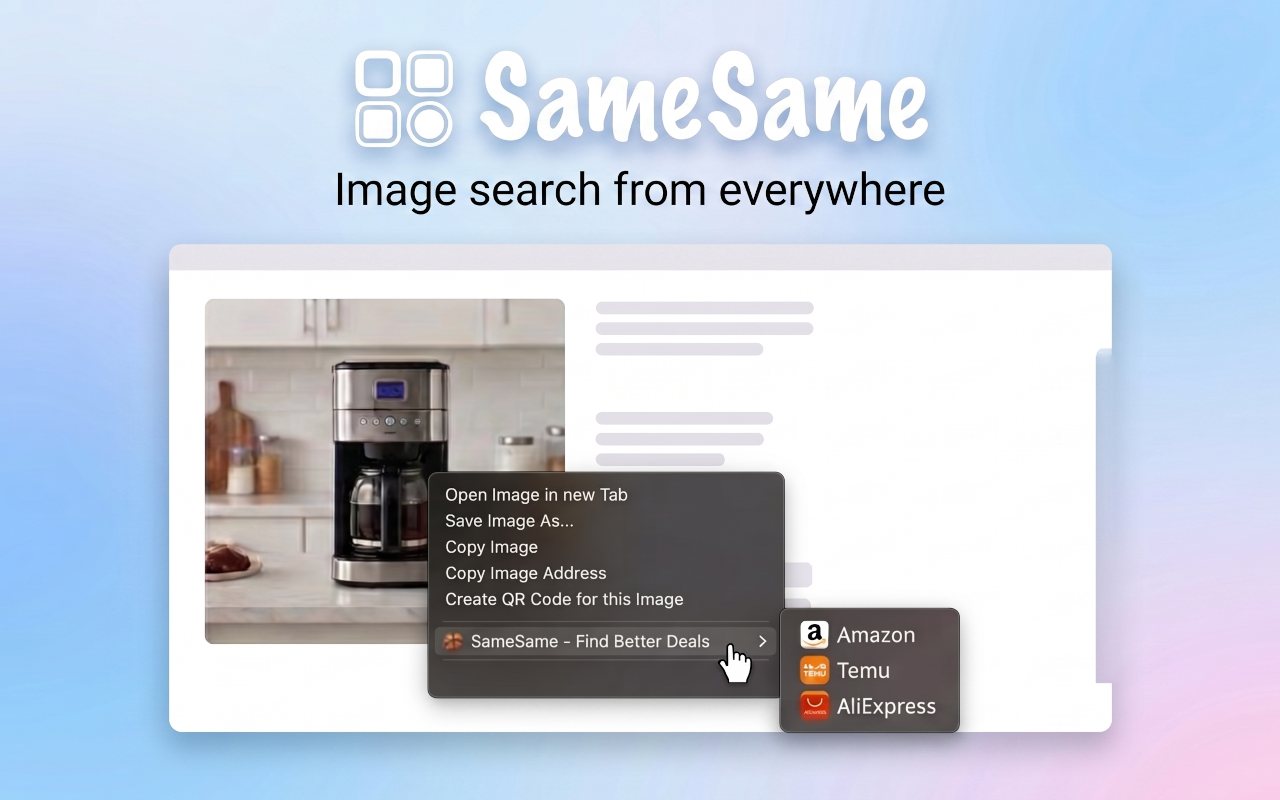
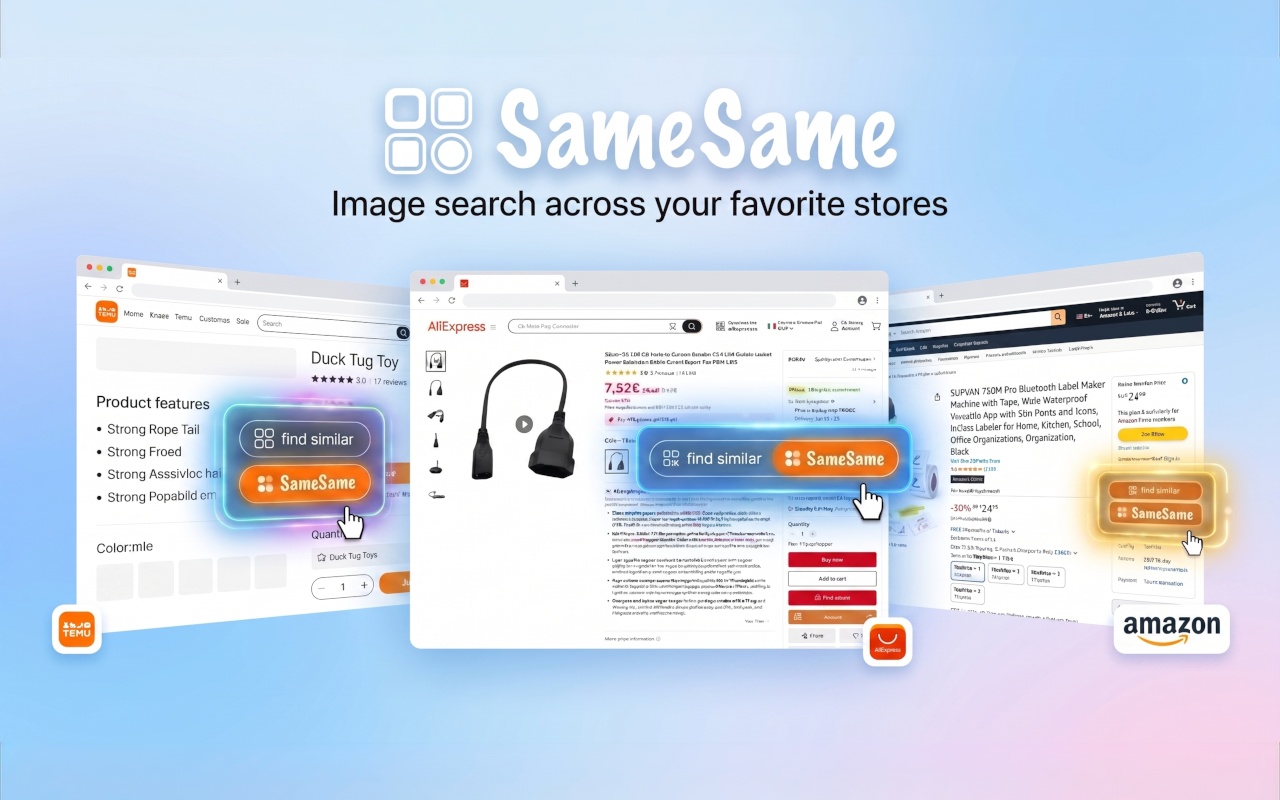
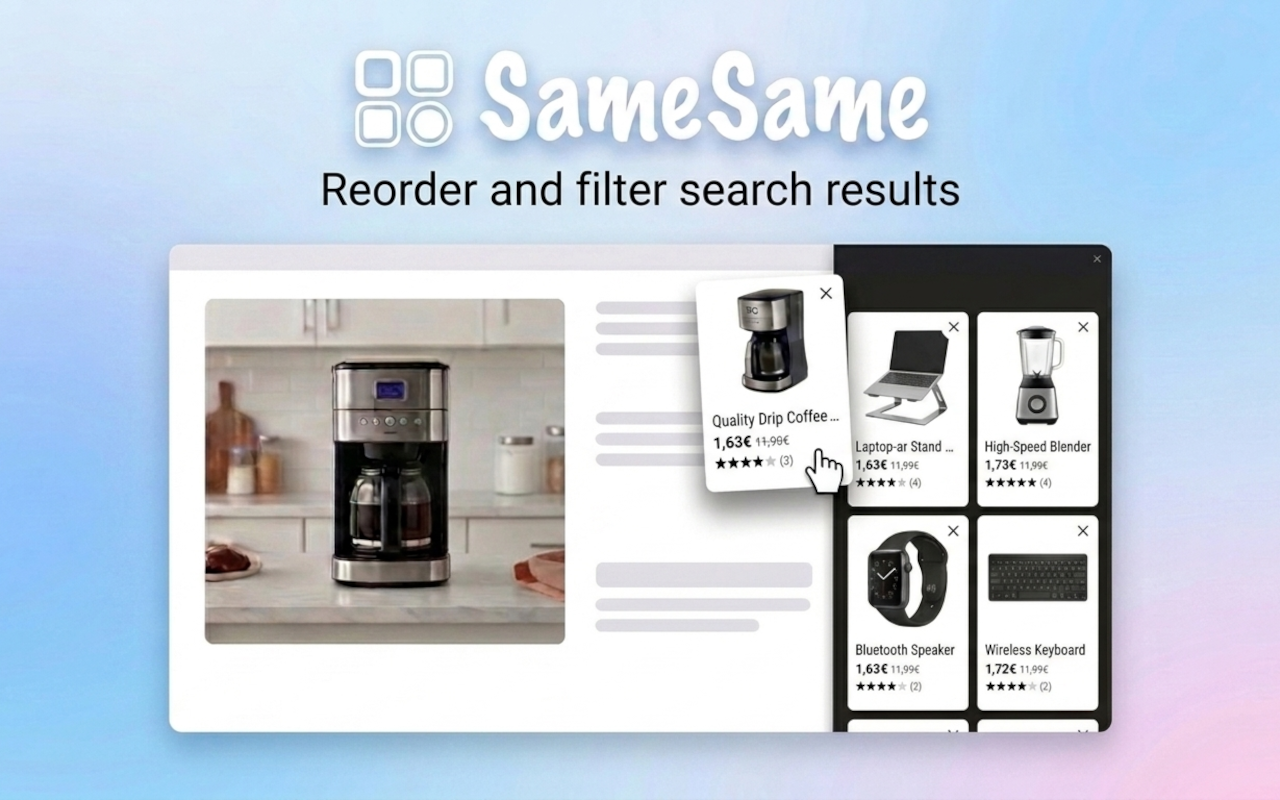
Temu's own visual search is built for the app. On a computer it is easy to miss. SameSame exposes Temu image search from the page you are already on: right-click a photo, use find similar on product pages, and compare matches in a sidebar.
Why Temu image search is awkward on desktop
Temu's help pages send you to the mobile app for photo search: open Temu, tap the camera next to the search box, then take a picture or pick one from your library. That flow is clear on a phone. It is a poor fit when the photo is already on a desktop listing.
The Temu website is keyword-first. You can type a short description and filter. You usually cannot point Temu at the image sitting on the page. The workaround is slow: save the file, send it to your phone, open the app, upload. Most people skip that and guess at titles instead.
Titles are a weak query for the same reason they are weak on other marketplaces. Temu cards are short, promotional, or packed with pack size and color. The picture is the part of the listing that actually describes the object.
Native Temu: the app camera
If you are standing in front of the object, the Temu app camera is the direct path. Photograph the item, or upload a shot from your camera roll. That is Temu's own visual search, in the place Temu designed it for.
Keep using it for real-world objects. SameSame does not replace the app. It covers the desktop gap: the image is already in the browser, and you do not want to shuttle a file to your phone to run the same kind of store search.
SameSame: Temu search from the page you are on
SameSame is a free browser extension for Chrome, Firefox, and Edge. It does not run a separate product index. It calls each platform's own image-search API. Those APIs are often primarily available in the mobile apps. The extension is a way to run them from desktop, instead of sending the photo to a third-party reverse-image site.
For Temu, that means three desktop actions:
- Right-click a product image on almost any website and choose Temu.
- Use find-similar on Temu product pages (and on Amazon and AliExpress product pages) when SameSame shows that action.
- Read the matches in a collapsible sidebar so you stay on the original listing while you compare.
You can start from a Temu page, an Amazon page, an AliExpress page, or another shop. The photo is the query. Temu is the destination. If you also want AliExpress or Amazon on the same object, run those searches from the same image. You do not have to save the file first.
How to get a cleaner Temu match
Visual search is only as focused as the pixels you give it. A front pack shot of one object on a plain background is a strong query. A collage, a screenshot full of text, or a lifestyle photo with a busy room is a weak one. If the first results share a color or a setting but not the object, the model is grabbing the background.
- Start with the front view, not a scale shot full of rulers and badges.
- If the product is a set, try a photo of the main piece alone.
- If color variants flood the results, try a second image in a neutral color.
- If lifestyle photos dominate, switch to the pack shot on the listing.
Then read the Temu cards the way you would read any marketplace result. Confirm pack count, size, included parts, and shipping. A close visual match can still be a different SKU. Image search finds candidates. The listing details decide whether you buy.
When to stay in the Temu app instead
If the object is in your hand, use the Temu app camera. SameSame is for desktop and for images that already live in the browser: Amazon, AliExpress, Temu, social posts, other stores. You can use both. Many people photograph an item in the app, then later right-click a cleaner listing photo on the web when they want a second pass.
SameSame will not make a poor photo into a perfect query. Blurry images, heavy filters, and screenshots of screenshots all reduce match quality, in the app and in the extension. If results look random, get a sharper picture of the object and search again.
Install SameSame for Temu image search
Add the extension, open any product photo, and right-click to search Temu. You can still use native Temu camera search whenever you are already in the app. SameSame is the desktop shortcut for the same store tool.
FAQ
Does Temu have a built-in image search?
Yes. Temu offers image search in its mobile app: a camera control next to the search box. On the desktop site that control is easy to miss or missing, so most people type keywords instead.
How do I search Temu by image from a computer?
Install SameSame, right-click a product photo, and choose Temu. On Temu product pages you can also use find-similar. Results stay in a collapsible sidebar so you do not leave the listing you were already reading.
Does SameSame use Temu's own image search?
Yes. SameSame calls each platform's own image-search API rather than a third-party reverse-image site. Those APIs are often easiest to reach in the mobile apps. The extension is a desktop way to run the same store tools.
Can I search Temu from a photo on Amazon or AliExpress?
Yes. Right-click an image on Amazon, AliExpress, another shop, or almost any website, and run Temu visual search without saving the file first.